For educators
Make lessons visual. Let students draw, write, record an explanation, or show what they learned. Start with a blank board, then add the tools your lesson needs.
SplatWorks includes the DrawSplat whiteboard, standalone creative and productivity tools, classroom widgets, games, and office applications. Browse ecosystem features by category to choose the component for your activity.
Start a lesson
- Open the whiteboard from your school’s link, or open DrawSplat.
- On a school setup, choose Options → Get Started with Your School. Use the sign-in method your school provides.
- Add a prompt, model one response, and give students time to try it.
- Save a board file or export student work before you close the browser.
The Teacher Quick Start walks through school sign-in and saving. A browser-only board also works without an account.
Choose a teaching tool
| What you want to do | Features to try |
|---|---|
| Explain an idea | Draw, add text and sticky notes, and organize pages. Use audio or video notes for a spoken explanation. |
| Start with a ready-made task | Choose a background or use a classroom template. The first board is plain white; grids are optional. |
| Support visual learning | Add images, stickers, or coloring activities. Check each outside image’s license before sharing it. |
| Show connections | Build diagrams, maps, or word clouds. Ask students to explain the links they made. |
| Explore data | Make graphs or picture graphs. Use GridSplat for tables, formulas, and charts. |
| Keep a lesson moving | Use classroom widgets, such as timers. |
| Create and practice | Try scratch art or classroom games, including typing practice. |
| Write or present | Use WriteSplat for writing, ShowSplat for slides, or ListSplat for organized records. |
Keep a Google Drive copy
The office apps and creative tools can save a file copy to your Google account after you authorize it. Follow the Google Drive guide for the correct action and format in each app, including PDFs, videos, media outputs, Markdown and diagram source. Local saving remains available.
Collect work and give feedback
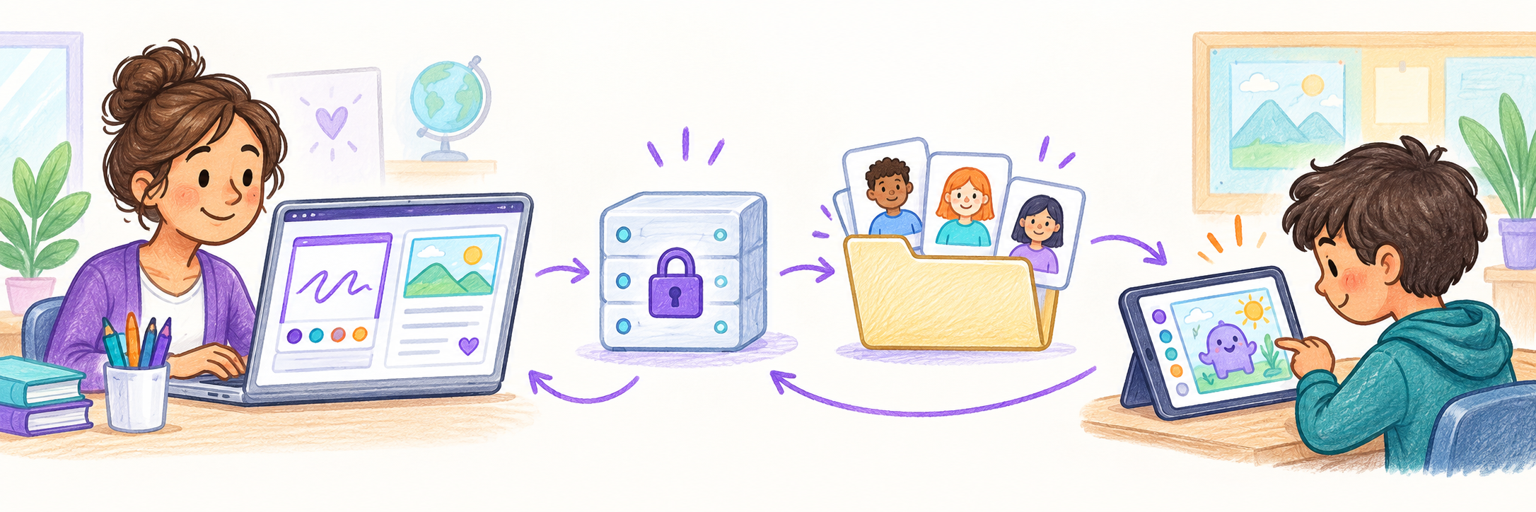
On a configured district setup, teachers can use classrooms and assignments to collect student turn-ins and give feedback. Your school must set up accounts and rosters first.
Collaboration and turn-ins explains the available sharing paths. Features depend on the connection your school uses; district accounts and Apps Script rooms are separate systems.
Help every learner take part
Offer a short written prompt and a model. Let students explain with text, pictures, or a voice note when it fits the learning goal. For multilingual learners, invite home-language labels alongside new vocabulary. Review outside media and embedded tools before using them with a class.
See the accessibility statement for known limits and support needs.
Save work with confidence
Saving and exporting explains local files, online boards, and exports. Browser autosave stays in that browser and can be lost when its data is cleared. Keep a saved file for important work.
Need more detail? Browse the whiteboard feature reference. For setup help, use Technology admins. Share Parents and students with families.